
10 Powerful Steps for Setting Up MT4 Robot for Demo Account (Beginner-Friendly Guide)


What Is MT4 and Why Traders Use Robots (Expert Advisor Overview)
When traders talk about setting up MT4 robot for demo account, they’re referring to a process that lets them test automated trading strategies safely without risking real money. MT4, also known as MetaTrader 4, is one of the most widely used forex trading platforms thanks to its stability, simple design, and powerful Expert Advisor (EA) support. EAs can place trades automatically based on predefined algorithms, technical indicators, and market data.
Understanding Automated Trading Systems
Automated trading systems allow traders to remove emotions from decision-making, follow strict rules, and monitor markets 24/7. Robots analyze price movements, identify patterns, and execute trades faster than a human could.
Benefits of Using Robots on Demo Before Going Live
A demo account is the safest place to experiment. You can:
- Test trading strategies without losing money
- Measure robot performance before committing real funds
- Understand risk levels, drawdowns, and execution behavior
- Optimize settings for different market conditions
This ensures your robot behaves exactly how you expect.
Getting Started: Setting Up MT4 Robot for Demo Account
This section covers the complete step-by-step process, even if you’re a total beginner.
Step 1: Downloading and Installing MT4
Choosing a Reliable Forex Broker
A trustworthy broker ensures fast execution and accurate market prices. Some major brokers offering MT4 include:
Always choose a broker that offers unlimited demo accounts, tight spreads, and no restrictions on Expert Advisors.
Installing MT4 on Windows, macOS, and Mobile
Most traders use MT4 on desktop because robots require continuous running. Download the platform directly from your broker’s website. After installation, the platform opens with default charts and basic settings.
Step 2: Creating Your Demo Trading Account
Selecting Demo Balance & Leverage
Use a balance similar to what you plan to trade live. This makes testing realistic. Leverage between 1:50 and 1:300 is typical for most strategies.
Logging In Safely to the MT4 Platform
Enter your demo account login, server address, and password. Once logged in, the connection icon should turn green.

Step 3: Adding Your Expert Advisor (EA) to MT4
Locating the MT4 “Experts” Folder
Inside MT4, click:
File → Open Data Folder → MQL4 → Experts
This is where all EA files must be placed.
Moving or Copying EA Files Correctly
Simply drag your .ex4 or .mq4 file into the Experts folder. Afterward, restart MT4 so it recognizes the new robot.
Step 4: Enabling Auto-Trading on MT4
Configuring EA Settings and Inputs
Click on the EA from the Navigator window, then drag it onto a chart. You will see input fields such as:
- Lot size
- Stop loss and take profit
- Trading hours
- Risk percentage
Adjusting Risk Management Parameters
Beginners often forget to set a safe risk level. Always start small, like 0.01 lots, until you understand how the robot behaves.
Step 5: Testing the Robot on a Chart
Selecting Currency Pairs & Timeframes
Robots are usually designed for specific markets. Check the developer’s guide to know which pair the EA performs best on.
Confirming EA Activation (Smiley Face Indicator)
After dragging the EA to your chart, the top-right corner should show a happy face. If you see a sad face, auto-trading is likely disabled.
Step 6: Monitoring Robot Performance
Evaluating Profit, Drawdown, and Trade Frequency
Keep track of daily results. Robots are not perfect—some perform better during trending markets while others thrive in range conditions.
Identifying Early Warning Signs of Poor EA Behavior
If the EA starts overtrading, placing unusual lot sizes, or ignoring stop losses, shut it down immediately.
Optimizing Your MT4 Robot for Better Demo Results
Using MT4 Strategy Tester for Backtesting
The built-in Strategy Tester allows you to analyze historical performance. This helps identify weaknesses and improve settings.
Fine-Tuning Inputs for Market Conditions
Adjust parameters slowly—one change at a time—to avoid confusing results.
Importance of VPS for Stable Robot Operation
A Virtual Private Server runs your trading robots 24/7 without interruptions. Many traders use VPS hosting for reliable execution.
External resource: https://www.babypips.com (great for learning forex basics)
Common Problems When Setting Up MT4 Robot for Demo Account (And How to Fix Them)
Auto-Trading Button Disabled
Make sure the Auto-Trading button at the top of MT4 is green. If not, click it.
EA Not Opening Trades
Possible reasons:
- Market closed
- Wrong currency pair
- Wrong timeframe
- Risk settings too strict
Incorrect Lot Size or Error Messages
Check your EA inputs carefully and ensure your demo balance supports your chosen lot size.

Powerful Forex VPS for MT4 & MT5 – Best Price
In stock
$44.99 $359.99Price range: $44.99 through $359.99| Validity | Monthly, Quarterly, Semi Annually, Annually |
|---|
FAQs About Setting Up MT4 Robot for Demo Account
1. Do I need a VPS for demo testing?
Not required, but helpful for uninterrupted robot operation.
2. Why isn’t my robot taking trades on demo?
It may require specific market conditions, or settings may be too restrictive.
3. Are demo results the same as live results?
Not always; demo execution is faster and more forgiving.
4. Can I use the same robot settings for all currency pairs?
No, most robots are optimized for specific pairs.
5. How long should I test a robot on demo?
At least 30 days to gather enough data.
6. Is setting up MT4 robot for demo account difficult for beginners?
With a simple step-by-step guide like this, the process becomes much easier.
Conclusion
Setting up MT4 robot for demo account is one of the smartest ways to start automated trading safely. You get hands-on experience without financial risk, allowing you to understand market behavior, refine your robot, and prepare for real trading. When set up correctly, demo testing helps you build confidence, optimize your strategy, and make well-informed decisions before going live.
Most Popular Forex EA
Onix Stratos XAUUSD EA: AI Smart Scalper for MT5
In stock
$0.00 $999.99Price range: $0.00 through $999.99
Elysium Vortex EURCAD EA: AI EURCAD Scalper for MT5
In stock
$0.00 $199.99Price range: $0.00 through $199.99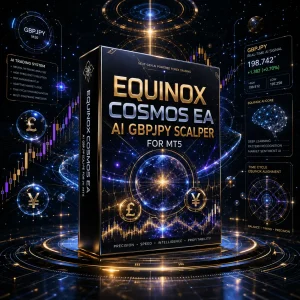
Equinox Cosmos GBPJPY EA: AI GBPJPY Scalper for MT5
In stock
$0.00 $399.99Price range: $0.00 through $399.99
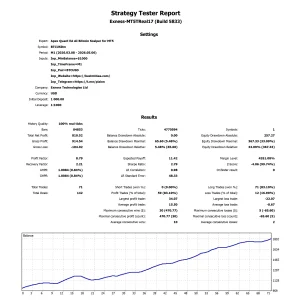
Apex Quant BTCUSD EA: AI Bitcoin Scalper for MT5
In stock
$0.00 $159.99Price range: $0.00 through $159.99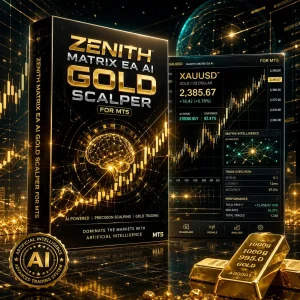
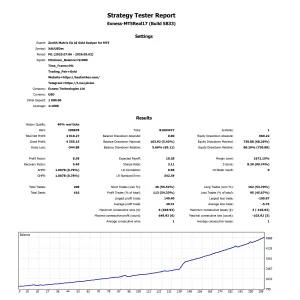
Zenith Matrix XAUUSD EA: AI Gold Scalper for MT5
In stock
$0.00 $899.99Price range: $0.00 through $899.99
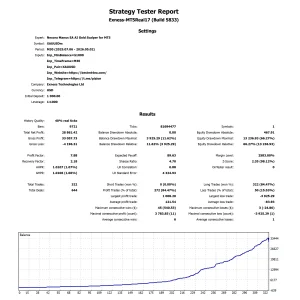
Nexora Manus XAUUSD EA: AI Gold Scalper for MT5
In stock
$0.00 $699.99Price range: $0.00 through $699.99
Mythos Epic XAUUSD EA: AI Gold Scalper for MT5
In stock
$0.00 $849.99Price range: $0.00 through $849.99

Obsidian Aether EURUSD EA: AI Grid Scalper for MT5
In stock
$0.00 $797.99Price range: $0.00 through $797.99

AVA AIGPT5 XAUUSD EA: AI Gold Scalper for MT4
In stock
$0.00 $679.99Price range: $0.00 through $679.99


Golden Deer Holy Grail Indicator (Lifetime Premium)
In stock
Original price was: $109.99.$87.99Current price is: $87.99.
Powerful Forex VPS for MT4 & MT5 – Best Price
In stock
$44.99 $359.99Price range: $44.99 through $359.99


 Gold Forex EA