

How to Update MT4 EA to Latest Version – Essential Guide for Traders

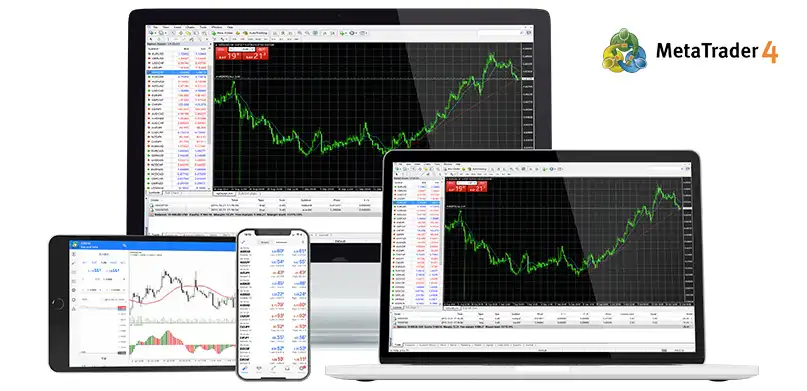
Keeping your trading tools updated is one of the smartest moves you can make as a trader. If you’re wondering how to update MT4 EA to latest version, you’re in the right place. Updating an Expert Advisor (EA) ensures peak performance, better accuracy, and full compatibility with the latest MetaTrader 4 (MT4) build. Whether your EA comes from a vendor, a developer, or the MQL5 marketplace, this guide will walk you through everything you need to know.
Understanding Expert Advisors (EA) in MetaTrader 4
Expert Advisors, or EAs, are automated trading programs designed to execute trades based on predetermined rules. They remove emotion from trading and help traders stick to proven strategies—no matter the time of day.
Key Features of MT4 Expert Advisors
EAs allow traders to:
- Automate buy/sell decisions
- Use technical indicators
- Set precise entry and exit rules
- Monitor multiple charts simultaneously
Why EA Updates Matter
Trading environments evolve quickly. New bugs emerge, MT4 patches roll out, and brokers upgrade servers. Updating your EA helps ensure it stays functional and profitable.
Reasons You Need to Update MT4 EA to Latest Version
Performance Optimization Benefits
Developers often release improvements that boost execution speed, reduce lag, or refine strategy logic. An updated EA performs better under fast market conditions.
Security Enhancements
Older EAs may contain outdated code or legacy functions not supported by newer MT4 builds. Updates protect you from errors and security vulnerabilities.
Platform Compatibility Improvements
MT4 frequently updates its internal build version. When that happens, older EAs might stop working properly. Updating helps ensure everything stays compatible.
Preparing Your MT4 Platform for EA Updates
Backing Up Existing EA Files
Before you install any new version, create a backup. This helps you revert if the update doesn’t work as expected.
To back up:
- Open MT4
- Go to File → Open Data Folder
- Copy your MQL4 folder to a safe location
Verifying MT4 Build Compatibility
Make sure your MT4 terminal is up to date by navigating to:
Help → About
If your build is older, restart MT4 or reinstall it through your broker.
How to Update MT4 EA to Latest Version (Step-by-Step Tutorial)
Updating an EA is simple once you know the process.
Step 1 – Obtaining the Latest EA Files
You should always download EA updates directly from:
- Your EA vendor
- Your developer
- The MQL5 marketplace
- Email updates from providers
Never download EA files from untrusted sources.
Step 2 – Opening the MT4 Data Folder
In MT4:
- Click File → Open Data Folder
- Open MQL4 → Experts
This is where your EA files live.
Step 3 – Replacing Old EA Files
Delete or overwrite the old .ex4 or .mq4 file with the new version.
Make sure the file name remains the same to avoid duplicates.
Step 4 – Compiling EA in MetaEditor
If you have the .mq4 source file:
- Right-click the EA
- Click Modify
- When MetaEditor opens, press Compile
Fix any compilation errors that appear.
Step 5 – Restarting MT4 for Update to Apply
Restart your MT4 terminal or simply refresh:
- Right-click Navigator Panel
- Select Refresh
The new EA version should now load.
Updating Purchased Market EAs from MQL5.com
If you purchased an EA from the MQL5 Market, updates are even easier.
How Auto-Updates Work
MT4 automatically downloads updated versions when the developer pushes them—no manual installation needed.
Manual Refreshing for Updates
To manually refresh:
- Open Terminal → Market → Purchased
- Click Refresh
- Restart MT4
Fixing Common Problems When Updating an MT4 EA
EA Not Showing in Navigator
This usually happens due to:
- Missing files
- Incorrect folder placement
- Compilation errors
Ensure the EA is in the correct Experts folder.
Compilation Errors After Update
If errors appear:
- Update libraries (.dll, include files)
- Make sure MT4 supports all functions used in the EA
- Contact the developer if needed
EA Not Trading After Update
Check:
- AutoTrading is enabled
- DLL imports are allowed
- The license is still valid
- Inputs use correct settings
Best Practices for Maintaining Updated MT4 EAs
Keeping Version History Records
Document each update so you know what changed and when.
Testing Updates Using Strategy Tester
Always test new EA versions in Strategy Tester before running them live.
Avoiding Untrusted EA Sources
Only update from reputable vendors to avoid malware or corrupted files.
FAQ – How to Update MT4 EA to Latest Version
1. Do I need the source file (.mq4) to update an EA?
No. If you have the .ex4 compiled file, you can still update by replacing it with the developer’s latest version.
2. Why is my EA not appearing after updating?
It may be in the wrong folder or failing to compile.
3. Can I update MT4 EAs on Mac?
Yes, but you must access the MT4 data folder inside your emulator or wrapper.
4. What if the update causes new bugs?
Restore your backup or contact the EA developer for a fix.
5. Are EA updates free?
Purchased EAs typically include lifetime updates unless the vendor states otherwise.
6. Can MT4 auto-update my EAs?
Yes—only for Market-purchased EAs.
Conclusion
Learning how to update MT4 EA to latest version ensures your automated trading strategy runs smoothly, safely, and efficiently. With the steps outlined above, you can confidently update any EA—whether manually or through the MQL5 marketplace. Keeping your tools up to date is one of the easiest ways to protect your trading performance.

